Wednesday, October 10, 2012

Cấu hình netflow để giám sát lưu lượng mạng


I- Giới thiệu:

Netflow là tính năng của Cisco IOS cho phép thống kê lưu lượng gói qua router. Netflow thực hiện giám sát, phân tích, tính toán lưu lượng gói. Sử dụng phổ biến trong các yêu cầu sau:
• Giám sát mạng : Cho phép giám sát hiện trạng mạng gần như thời gian thực. Giám sát mạng là kỹ thuật dựa vào flow (tập những gói có cùng 7 thông tin : IP nguồn, IP đích, Port nguồn, Port đích, ToS, loại giao thức lớp 3, cổng vào) nhằm thực hiện thu thập thông tin theo lưu lượng gói, theo luồng liên quan đến một thiết bị router, switch hoặc sự kết hợp của nhiều lưu lượng từ nhiều thiết bị giúp chủ động nhận diện được vấn đề, hiệu quả trong quá trình xử lý sự cố và đưa ra giải pháp giải quyết vấn đề một cách nhanh chóng.
• Giám sát ứng dụng : Cho phép người quản trị nhìn thấy một cách chi tiết về hoạt động của ứng dụng trên mạng theo thời gian. Thông tin này được dung để hiểu được những dịch vụ mới nhằm phân phối tài nguyên mạng (băng thông, chất lượng dịch vụ…) và tài nguyên cho ứng dụng cũng như là kế hoạch mở rộng.
• Giám sát người dung: Cho phép người vận hành mạng hiểu rõ tài nguyên mạng và tài nguyên ứng dụng mà người dung sử dụng từ đó có kế hoạch phân phối tài nguyên một cách hợp lý cho người dung, cũng như nhận diện được những vấn đề liên quan đến an ninh mạng hoặc vi phạm chính sách.
• Xây dựng kế hoạch phát triển mạng : Do có khả năng giám sát và phân tích lưu lượng dữ liệu trong một khoảng thời gian dài, điều này cho phép người quản trị có cơ hội theo dõi, dự đoán sự phát triển của mạng để có kế hoạch nâng cấp như tăng số lượng router, những cổng với băng thông lớn…
• Phân tích an ninh mạng : Netflow định danh và phân loại những loại tấn công như Dos, DDos, virus, worm theo thời gian thực dựa vào những sự hành vi thay đổi bất thường trong mạng.
• Tính toán lưu lượng: Netfow cho phép người quản trị có được thông tin chi tiết lưu lượng dữ liệu như địa chỉ IP, ứng dụng, ToS (type of service), số lượng gói, số lượng byte, thời gian hoạt động giúp cho việc tính toán tài nguyên mạng được sử dụng theo người dung, ứng dụng… trong khoảng thời gian cụ thể.
Lưu lượng qua router hoặc switch khi thu thập và phân tích sẽ được đặt trong cache (Netflow cache), có thể truy xuất thông qua CLI hoặc ứng dụng bên ngoài.


II- Mục đích và sơ đồ kết nối
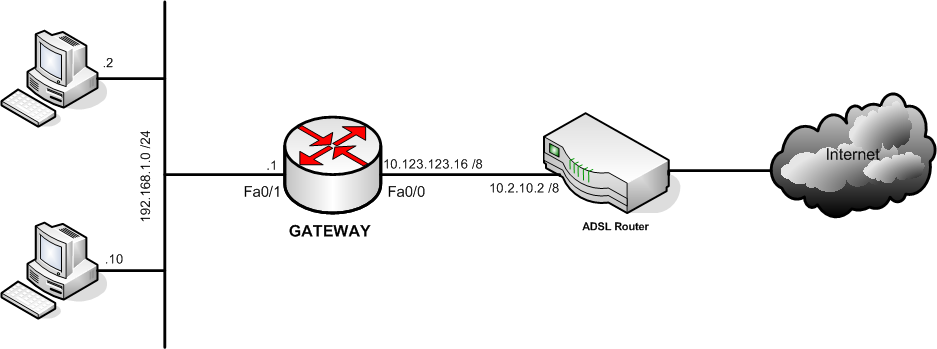
Trong bài lab này yêu cầu cấu hình Netflow trên router GATEWAY và kiểm tra kết quả Netflow cache qua CLI hoặc ứng dụng phân tích Netflow được cài đặt trên thiết bị giám sát.


III – Cấu hình chi tiết :
Bước 1 : Đặt tên và địa chỉ của các interface
Router(config) #hostname GATEWAY
GATEWAY(config) #interface FastEthernet0/0
GATEWAY(config-if) # ip address 10.123.123.16 255.0.0.0
GATEWAY(config-if) #no shutdown
GATEWAY(config) #interface FastEthernet0/1
GATEWAY(config-if) # ip address 192.168.1.1 255.255.255.0
GATEWAY(config-if) #no shutdown
Bước 2 : Cấu hình PAT và default route để mạng bên trong truy cập được Internet
GATEWAY(config-if) # access-list 1 permit 192.168.1.0 0.0.0.255
GATEWAY(config-if) # ip nat inside source list 1 interface FastEthernet0/0 overload
GATEWAY(config) #interface FastEthernet0/1
GATEWAY(config-if) #ip nat inside
GATEWAY(config) #interface FastEthernet0/0
GATEWAY(config-if) #ip nat outside 
GATEWAY(config) #ip route 0.0.0.0 0.0.0.0 10.2.10.2
Kiểm tra kết quả :
GATEWAY#show ip nat translations
Pro Inside global Inside local Outside local Outside global
tcp 10.123.123.16:2492 192.168.1.10:2492 65.55.122.231:2492 65.55.122.231:2492
tcp 10.123.123.16:2492 192.168.1.10:2492 65.55.122.233:2492 65.55.122.233:2492
tcp 10.123.123.16:2492 192.168.1.10:2492 65.55.122.234:2492 65.55.122.234:2492
tcp 10.123.123.16:2492 192.168.1.10:2492 65.55.122.235:443 65.55.122.235:443
tcp 10.123.123.16:2492 192.168.1.10:2492 65.55.122.235:2492 65.55.122.235:2492
Bước 3 : Cấu hình Netflow trên router
- Xác định thiết bị sẽ nhận flow cache (lưu ý phải bao gồm giá trị port):
GATEWAY(config) #ip flow-export destination 192.168.1.10 5000
- Xác định version của Netflow:
GATEWAY(config) # ip flow-export version 5
- Xác định cổng và hướng được theo dõi:
GATEWAY(config)#interface fa0/1
GATEWAY(config)#ip flow ingress
GATEWAY(config)#interface fa0/0
GATEWAY(config)#ip flow egress
- Bạn có thể cấu hình snmp-server để cho phép đa dạng thông tin được theo dõi :
GATEWAY(config)# snmp-server community cisco123 RO
Bước 4 : Cài đặt Netflow trên phần mềm giám sát
Trong phần này chúng ta sẽ dùng phần mềm Netflow Analyzer 8 để thực hiện giám sát
- Chuẩn bị cài đặt:
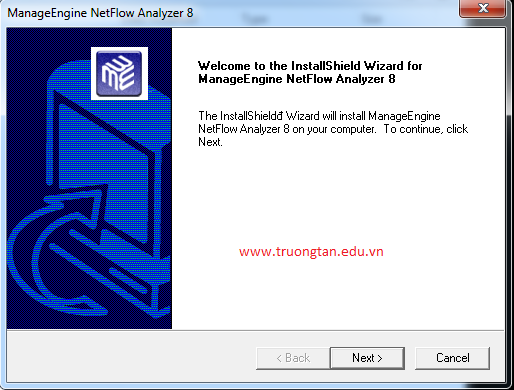

Chọn Next để tiếp tục
- Chọn thư mục cài đặt:
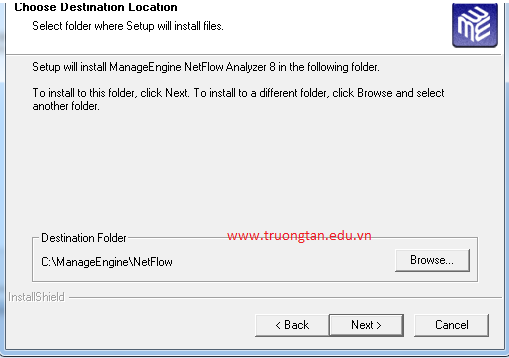

- Cấu hình web port 8080 và Netflow Port ở đây là 5000
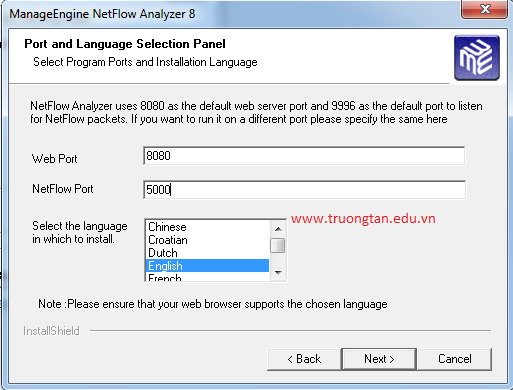

Chọn Next -> Finish
Kiểm tra:
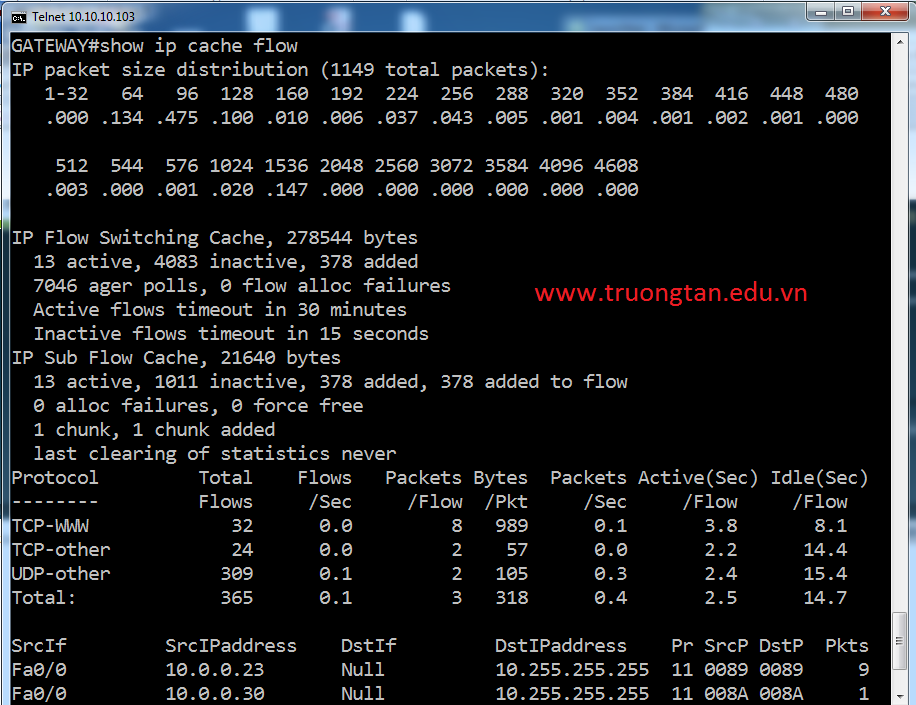
Thực hiện truy cập dịch vụ Internet từ PC, ta có thể phân tích lưu lượng của ứng dụng theo kích cỡ gói, số lượng gói, địa chỉ IP, số port, cổng vào, cổng ra… trên router bằng câu lệnh show ip cache flow 

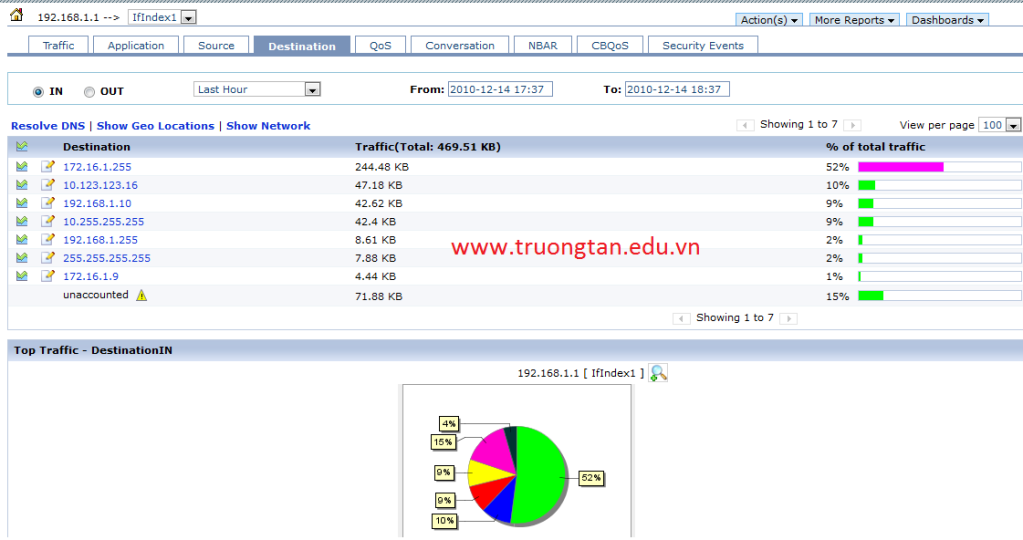
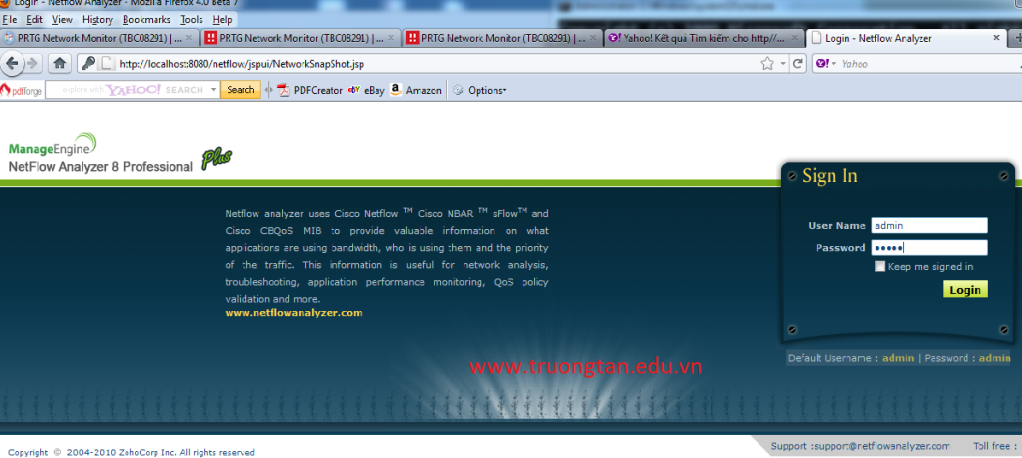
Bạn có thể quan sát trực quan bằng công cụ phân tích netflow dựa trên giao diện Web. Thực hiện đăng nhập vào ứng dụng với User Name :admin, Password : admin

Sau khi đăng nhập thành công, bạn sẽ thấy các thiết bị được theo dõi:
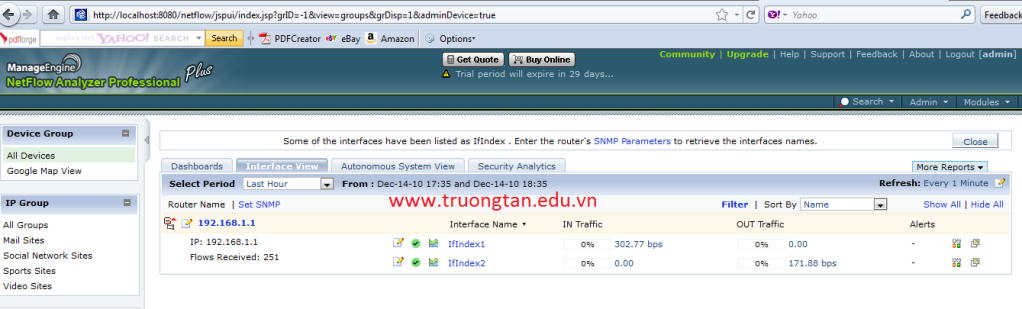

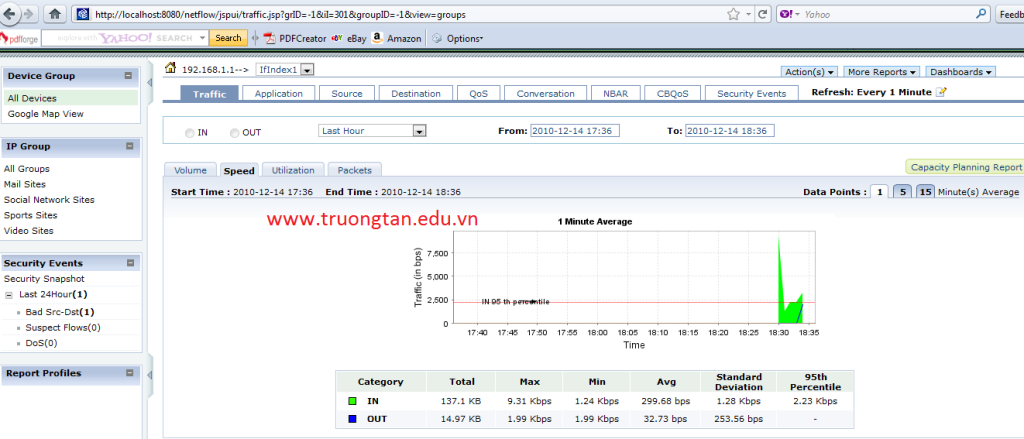
Biểu đồ biểu hiện lưu lượng theo thời gian và bảng thể hiện lưu lượng theo ứng dụng

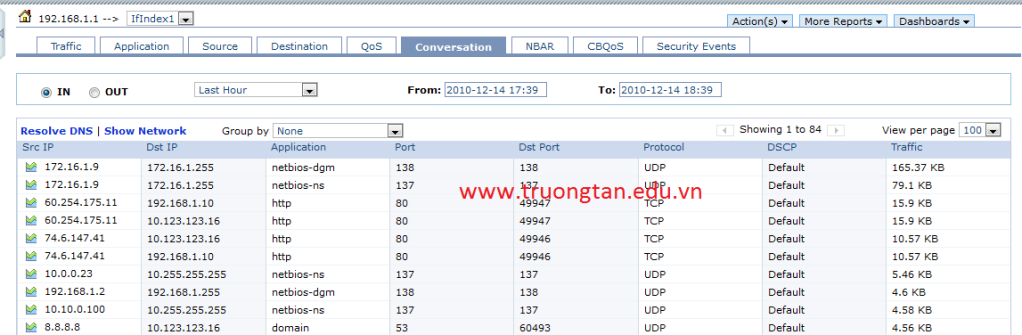
Phân loại lưu lượng theo địa chỉ IP nguồn và IP đích 
Friday, October 5, 2012

Unrar file with Ubuntu


you have got a rar file (or other file formats not naively supported by Ubuntu’s archive manager- such as arj, 7zip, etc), you need to install extra packages so that Archive Manager can handle these file formats. For example, if you would like to unrar a file in Ubuntu, you need to install the package unrar.  Open a terminal (command window) and simply issue this command:
sudo apt-get install unrar-free
for a non-free option, you can use:
sudo apt-get install unrar
You might be asked to give your password and then the package is downloaded and installed. After the package is installed, you can use the usual Archive Manager to unrar files.

Monday, August 6, 2012

Bin deploy required dependencies for MVC 3 projects with Visual Studio 2010 SP1


If you have previously worked on ASP.NET MVC 2 projects and are making the move to MVC 3 you may have noticed that deploying projects to a server environment that doesn't have MVC installed is not as easy as it once was. Prior to MVC 3 we could simply set the "Copy Local" property to "True" on a couple of references that were already part of our project. With MVC 3 (and the Razor view engine) there are a set of dependencies that are not part of the default project setup and aren't required as a direct reference within the project. The full list of the required dependencies is:
  • Microsoft.Web.Infrastructure
  • System.Web.Helpers
  • System.Web.Mvc
  • System.Web.Razor
  • System.Web.WebPages
  • System.Web.WebPages.Deployment
  • System.Web.WebPages.Razor
Thankfully, Visual Studio 2010 Service Pack 1 provides an easy way to get these dependencies into your project without adding them as references and make them part of the bin dir on build.
Here is a look at our project structure (an MVC 3 web site) prior to adding the required dependencies:
alt text
If we bring up the context menu (right click) on our Website project we will see the option for Add Deployable Dependencies...
alt text
Click on that and we will get a dialog window with the option to select which MVC dependencies we want to include. Check both only the ASP.NET MVC dependency (see Phil Haack's comment down below for an explanation) and click OK.
alt text
And the results:
alt text
Holy cow that is a lot of files! A dir named _bin_deployableAssemblies gets added to the project with all the required dependency files. Visual Studio 2010 with Service Pack 1 will know to hit the dir with this name to add any required dependencies to the bin dir on build. That's it. Cake! Now we can go about our normal deployment business. If we use Web Deploy, well, everything is in our bin dir on the build action and the Web Deploy will deploy the bin dir so we are all set. If we have some other process to deploy, as long as we are including the full contents of the bin build dir then we are covered as well.
If you don't have Visual Studio 2010 Service Pack 1 installed you can check out Scott Hanselman's post BIN Deploying ASP.NET MVC 3 with Razor to a Windows Server without MVC installed.

Select List in Asp.net MVC 3


Ever feel like the HTML  element just didn't get enough lovin' in ASP.NET MVC? The HtmlHelper.DropDownList helper is a definite plus, but mapping data to it from a view model tends to be a bit too ridged as it depends upon a MVC specific class, System.Web.Mvc.SelectList. No worries, the great thing about programming is that we can take it upon ourselves to craft solutions that fit our needs. Let's take a look at how we can handle extending the DropDownListhelper and make it easier to work with data in a view model to populate our HTML  elements.
The current overload methods for System.Web.Mvc.HtmlHelper.DropDownList:
DropDownList Overloads
We can see that all the methods that provide a means for populating the  elements work off of an IEnumerable object. The sticker here is the SelectListItem type. In order to pass data into the helper we need to package it up in SelectListItem objects. So our code that handles prepping data for the view will need to know about an MVC specific construct. Not that there is necessarily anything wrong with that, but it can be limiting to your decoupling efforts if you are into that sort of thing (which can be a very good thing to be into).
We can work around this by writing our own extension methods on the HtmlHelper class. Let's begin by writing an extension method in a static class forHtmlHelper.DropDownList. This extension method will allow us to pass in a string to represent the name to use for the HTML select element and a Dictionary collection object for the HTML option elements. The method will handle mapping the dictionary to a System.Web.Mvc.SelectList object that can then be passed to one of the existing DropDownList methods.
using System.Collections.Generic;
using System.Web.Mvc;
using System.Web.Mvc.Html;
namespace Website.Models
{
    public static class ExtensionMethods
    {
        public static MvcHtmlString DropDownList(this HtmlHelper helper, 
            string name, Dictionary<int, string> dictionary)
        {
            var selectListItems = new SelectList(dictionary, "Key", "Value");
            return helper.DropDownList(name, selectListItems);
        }
    }
}
The SelectList constructor supports passing in an IEnumerable object and two strings that represent the property names of the value field and text field to use from the objects in the enumerable collection. This makes it easy for us to pass in the incoming dictionary object and the name of the properties on the objects in the dictionary. Enumerating over a Dictionary object results in KeyValuePair objects that have properties named Key and Value, so those are the string values we would use to tell the SelectList object how to map the data. With the SelectList created, we can call the existing DropDownList method on theHtmlHelper and be on our way.
With the extension method in place we can turn our attention to crafting a view model and loading up data for populating a select list. Imagine we needed a select list for days of the week where the text is the name of the day and the value is an integer representing the day number in the week. If we were to create a class namedPageWithSelectList as our view model, we could fill it out with the following:
using System.Collections.Generic;
namespace Website.Models
{
    public class PageWithSelectList
    {
        public Dictionary<int, string> DaysOfWeek { get; set; }
        public int DayOfWeek { get; set; }

        public PageWithSelectList()
        {
            this.DaysOfWeek = new Dictionary<int, string>
                                  {
                                      {1, "Sunday"},
                                      {2, "Monday"},
                                      {3, "Tuesday"},
                                      {4, "Wednesday"},
                                      {5, "Thursday"},
                                      {6, "Friday"},
                                      {7, "Saturday"}
                                  };
        }
    }
}
The DaysOfWeek would represent the data for the option elements. The DayOfWeek would represent the selected day key value (if any). The constructor handles loading up the DaysOfWeek with some data.
Moving to the controller, we can initialize an instance of the PageWithSelectList class and pass that to a view. Using a HomeController as an example, the Indexaction method could look like so:
using System.Web.Mvc;
using Website.Models;
namespace Website.Controllers
{
    public class HomeController : Controller
    {
        public ActionResult Index()
        {
            var model = new PageWithSelectList();
            return View(model);
        }
    }
}
Before we turn our attention to the view file we need to address some details in the way the Razor view engine works. In previous versions of MVC you were able to add namespaces to the pages node in your main Web.config file to make them available to your view files without needing to add using statements within your views. With the Razor view engine there is a new node where these need to go () and they need to go into the Web.config file located in theViews directory.
<system.web.webPages.razor>
  <host factoryType="System.Web.Mvc.MvcWebRazorHostFactory, System.Web.Mvc, Version=3.0.0.0, 
        Culture=neutral, PublicKeyToken=31BF3856AD364E35" />
  <pages pageBaseType="System.Web.Mvc.WebViewPage">
    <namespaces>
      <add namespace="System.Web.Mvc" />
      <add namespace="System.Web.Mvc.Ajax" />
      <add namespace="System.Web.Mvc.Html" />
      <add namespace="System.Web.Routing" />
      <add namespace="Website.Models" />
    </namespaces>
  </pages>
</system.web.webPages.razor>
With the default MVC 3 projects in Visual Studio 2010 this node will automatically be added to the Web.config files in the Views directories. In the example above we have added the Website.Models namespace to the list so our views will have access to it and thus be able to call our extension method.
Note
If you use Areas you will need to add namespace nodes to each Web.config in each Areas//Views directory if you want them available. Right now it doesn't look like adding the  node to the top level Web.config is supported.
With those minor details handled we can build our view content. We make the view strongly typed to our Website.Models.PageWithSelectList class and add a call to our new extension method, passing in the name of our DayOfWeek property to align the html element id with our view model field and the DaysOfWeek object from our view model for populating the select options.
@model PageWithSelectList
@{
    ViewBag.Title = "Index";
}
@Html.DropDownList("DayOfWeek", Model.DaysOfWeek)
Since we added the Website.Models namespace to the Web.config file in the Views directory we do not need to use the namespace in our @model declaration, nor do we need to include a @using declaration. However, if we didn't add the namespace to the Web.config our view would look like:
@using Website.Models
@model PageWithSelectList
@{
    ViewBag.Title = "Index";
}
@Html.DropDownList("DayOfWeek", Model.DaysOfWeek)
The resulting html that gets rendered from the view looks like so:
<select id="DayOfWeek" name="DayOfWeek">
    <option value="1">Sunday</option>
    <option value="2">Monday</option>
    <option value="3">Tuesday</option>
    <option value="4">Wednesday</option>
    <option value="5">Thursday</option>
    <option value="6">Friday</option>
    <option value="7">Saturday</option>
</select>
With that, we have added some decoupling love to the HtmlHelper.DropDownList method! But the "out of the box" helper is not completely without love. In fact, it is tricked out to make our life extremely easy when it comes to pre-selecting an option in our view. Since our extension method is handling the mapping of our data structure into a structure the existing HtmlHelper.DropDownList method supports we get all the benefits of the existing method. The method will look for an existing property in the view model that matches the name value passed into the DropDownList method and will set the Selected property on the SelectListItem that has a matching value. By adding the DayOfWeek property to our PageWithSelectList view model we can set that property in our HomeController.Index action method and the HtmlHelper.DropDownList method will take care of things from there prior to rendering the html.
Setting the property on our model in the action method:
using System.Web.Mvc;
using Website.Models;
namespace Website.Controllers
{
    public class HomeController : Controller
    {
        public ActionResult Index()
        {
            var model = new PageWithSelectList();
            model.DayOfWeek = 3;
            return View(model);
        }
    }
}
With no changes needed to our view, the resulting html that gets rendered:
<select id="DayOfWeek" name="DayOfWeek">
    <option value="1">Sunday</option>
    <option value="2">Monday</option>
    <option selected="selected" value="3">Tuesday</option>
    <option value="4">Wednesday</option>
    <option value="5">Thursday</option>
    <option value="6">Friday</option>
    <option value="7">Saturday</option>
</select>
Maybe a Dictionary is not ideal for what your application needs. No problem. Simply create extension methods that take in data structures that you need. If they implement IEnumerable you can use the same example code logic we have already set up. If they don't, just handle mapping your data structure manually in your extension method logic.
Don't like the notion of working with "magic strings"? Create an extension method for the HtmlHelper.DropDownListFor method:
using System;
using System.Collections.Generic;
using System.Linq.Expressions;
using System.Web.Mvc;
using System.Web.Mvc.Html;
namespace Website.Models
{
    public static class ExtensionMethods
    {
        public static MvcHtmlString DropDownList(this HtmlHelper helper, 
            string name, Dictionary<int, string> dictionary)
        {
            var selectListItems = new SelectList(dictionary, "Key", "Value");
            return helper.DropDownList(name, selectListItems);
        }

        public static MvcHtmlString DropDownListFor<TModel, TProperty>(this HtmlHelper<TModel> helper,
            Expression<Func<TModel, TProperty>> expression, Dictionary<int, string> dictionary)
        {
            var selectListItems = new SelectList(dictionary, "Key", "Value");
            return helper.DropDownListFor(expression, selectListItems);
        }
    }
}
Then in your view you can use a strongly typed expression to reference the view model property for the html select element name:
@model PageWithSelectList
@{
    ViewBag.Title = "Index";
}
@Html.DropDownListFor(i=>i.DayOfWeek, Model.DaysOfWeek)
Now get back to work and show those html select elements who's boss by bending your MVC code to your will!