Friday, March 15, 2013

OAuth/OpenID Support for WebForms, MVC and WebPages


One of the coolest features in Visual Studio 2012 is the ability to login using your Microsoft, Facebook, Twitter or Google account. The project templates showcase a social way of logging in along with the usual way of logging in by creating a local account
This post highlights how you can turn on support for logging through these services in the project  templates. Head over the following video to get a quick glance on this feature http://www.asp.net/vnext/overview/videos/oauth-in-the-default-aspnet-45-templates

Enable OAuth login using Facebook, Twitter

Steps to get keys for Facebook
  • Go to the Facebook developers site (log in if you're not already logged in).
  • Choose the Create New App button, and then follow the prompts to name and create the new application.
  • In the section Select how your app will integrate with Facebook, choose the Website section.
  • Fill in the Site URL field with the URL of your site (for example, http://www.example.com). The Domain field is optional; you can use this to provide authentication for an entire domain (such as example.com).
    Note   If you are running a site on your local computer with a URL like http://localhost:12345 (where the number is a local port number), you can add this value to the Site URL field for testing your site. However, any time the port number of your local site changes, you will need to update the Site URL field of your application.
  • Choose the Save Changes button.
  • Choose the Apps tab again, and then view the start page for your application.
  • Copy the App ID and App Secret values for your application and paste them into a temporary text file. You will pass these values to the Facebook provider in your website code.
  • Exit the Facebook developer site.
Steps to get keys for Twitter
  • Browse to the Twitter developers site.
  • Choose the Create an App link and then log into the site.
  • On the Create an Application form, fill in the Name and Description fields.
  • In the WebSite field, enter the URL of your site (for example, http://www.example.com).
    Note   If you're testing your site locally (using a URL like http://localhost:12345), Twitter might not accept the URL. However, you might be able to use the local loopback IP address (for example http://127.0.0.1:12345). This simplifies the process of testing your application locally. However, every time the port number of your local site changes, you'll need to update the WebSite field of your application.
  • In the Callback URL field, enter a URL for the page in your website that you want users to return to after logging into Twitter. For example, to send users to the home page of the Starter Site (which will recognize their logged-in status), enter the same URL that you entered in the WebSite field.
  • Accept the terms and choose the Create your Twitter application button.
  • On the My Applications landing page, choose the application you created.
  • On the Details tab, scroll to the bottom and choose the Create My Access Token button.
  • On the Details tab, copy the Consumer Key and Consumer Secret values for your application and paste them into a temporary text file. You'll pass these values to the Twitter provider in your website code.
  • Exit the Twitter site.

Steps to enable OAuth support in WebForms

    • Create a new ASP.NET WebForms Application
    • Goto App_Start\AuthConfig.cs and uncomment the following lines of code
OpenAuth.AuthenticationClients.AddTwitter(
                 consumerKey: "your Twitter consumer key",
                 consumerSecret: "your Twitter consumer secret");
 
            OpenAuth.AuthenticationClients.AddFacebook(
                 appId: "your Facebook app id",
                 appSecret: "your Facebook app secret");

Steps to enable OAuth support in MVC

    • Create a new ASP.NET MVC Internet Application
    • Goto App_Start\AuthConfig.cs and uncomment the following lines of code
//OAuthWebSecurity.RegisterTwitterClient(
            // consumerKey: "",
            // consumerSecret: "");
 
            //OAuthWebSecurity.RegisterFacebookClient(
            // appId: "",
            //    appSecret: "");

Steps to enable OAuth support in WebPages

    • Create a new ASP.NET WebSite(Razor2)
    • Goto _AppStart.cshtml and uncomment the following lines of code
//OAuthWebSecurity.RegisterTwitterClient(
            // consumerKey: "",
            // consumerSecret: "");
 
            //OAuthWebSecurity.RegisterFacebookClient(
            // appId: "",
            //    appSecret: "");

OpenID services such as Google

Steps to enable OpenID support in WebForms

  • Create a new ASP.NET WebForms Application
  • Goto App_Start\AuthConfig.cs and uncomment the following lines of code
OpenAuth.AuthenticationClients.AddGoogle();

Steps to enable OpenID support in MVC

  • Create a new ASP.NET MVC Internet Application
  • Goto App_Start\AuthConfig.cs and uncomment the following lines of code
OAuthWebSecurity.RegisterGoogleClient();

Steps to enable OpenID support in WebPages

  • Create a new ASP.NET WebSite(Razor2)
  • Goto _AppStart.cshtml and uncomment the following lines of code
OAuthWebSecurity.RegisterGoogleClient();

Links to relevant posts

Happy Logging in a social way!!!

http://blogs.msdn.com/b/webdev/archive/2012/08/15/oauth-openid-support-for-webforms-mvc-and-webpages.aspx

Sunday, November 18, 2012

How to monitor devices with Cacti

There are many ways to monitor devices: netflow, span port, switchport and so on. Today I will explain how to monitor bandwith, CPU, … of routers and switches using SNMP and Cacti.

Simple Network Management Protocol (SNMP) is an “Internet-standard protocol for managing devices on IP networks. Devices that typically support SNMP include routers, switches, servers, workstations, printers, modem racks, and more.” It is used mostly in network management systems to monitor network-attached devices for conditions that warrant administrative attention. SNMP is a component of the Internet Protocol Suite as defined by the Internet Engineering Task Force (IETF). It consists of a set of standards for network management, including an application layer protocol, a database schema, and a set of data objects.

Cacti is a complete network graphing solution designed to harness the power of RRDTool’s data storage and graphing functionality. Cacti provides a fast poller, advanced graph templating, multiple data acquisition methods, and user management features out of the box. All of this is wrapped in an intuitive, easy to use interface that makes sense for LAN-sized installations up to complex networks with hundreds of devices.

Step #1: Configure your snmp device

snmp-server community c1sc0zine RW

Step #2: Create your tree

Go to “Management” then “Graph Trees” and click on “Add” link. Compile the “Name” field and click the “Create” button.

Step #3: Add your device

Go to “Management” then “Devices” and click on “Add” link. Compile the “Description”, “Hostname” and “SNMP Community” fields, select the “Cisco Router” Host Template, then click the “Create” button.

Step #4: Create your graph

Click on “Create Graphs for this Host”, select what you want monitor and click on “Create” button. In this tutorial I have decided to monitor Fastethernet0/0, Fastethernet0/1, Dialer1 and  CPU.

Step #5: Move your device to your tree

Go to “Management”, “Devices”, select the device with the checkbox and as “Choose an action” select “Place on a tree” and click on the button.

Step #6: View your graph

Plugins that could be useful are (http://docs.cacti.net/plugin:monitor)

- thold: alerting of data found within any graph
- monitor: displays the host’s status by using small icons. Green for up, Red for down, and Blue for recovering
- realtime: a method to view Cacti graphs with a resolution of upto 5 seconds.
- weathermap: a network visualisation tool, to take data you already have and show you an overview of your network in map form.


Monitor your servers with SNMP and Cacti


How-To: Monitor your servers with SNMP and Cacti

SNMP (Simple Network Management Protocol) is a protocol for managing networks. Each managed entity in the network will run an snmp server (snmpd) which is going to collect datas from the server such as networking, load, cpu ...
Cacti on the other hand is a frontend to the RRDTool with SNMP support. It collects and keep data in a MySQL database and display them through a PHP web frontend.
This tutorial will show how to configure the network manager to use Cacti and how to set up snmp on the managed host.
In this how-to, we are going to run the SNMP server and cacti on the same host and bind the service to localhost. This way, SNMP service won't be accessible from the outside. This is a good configuration when all you want to do is monitoring your home network router for instance.
If you intend to deploy this on a network, just keep in mind that SNMP server as to accept connection from the manager network wise (The remote IP need to be able to connect to the server) and within SNMPD configuration (The service as to return collected datas to the manager).
In the first part of this article, we are going to install and configure the SNMP server.
A second part will present how to install and configure Cacti on the manager.
Finally, we are going to configure Cacti to collect and display CPU, Load, Memory and Network statistic of the SNMP server.
This article was made using Debian Etch and Ubuntu Feisty but should also work out of the box for previous version of those distributions.

1. SNMPD

SNMPD is the service running SNMP on a managed entity. SNMP comes in 3 versions. Version 1, the one we are going to use here is not secured, therefore we are going to make sure that only localhost is going to be able to access it.
People opening the service to the outside should make sure that trusted hosts can access the service either though the use of iptables or through the use of /etc/hosts.allow.

1.1. Installing the SNMP server

The only package which is required on the server site is snmpd, the SNMP daemon.
To install it type:
$ sudo apt-get install snmpd
snmpd is now installed but we still have to tweak it a little bit to make it work as we want.

1.2. Configuring SNMPD

The first thing we want to make sure is that snmpd is only going to wait for connections on localhost. To do this, edit file /etc/default/snmpd and make sure those values are set:
SNMPDRUN=yes
SNMPDOPTS='-Lsd -Lf /dev/null -u snmp -I -smux -p /var/run/snmpd.pid 127.0.0.1'
If you want your server to listen on all interfaces, remove the 127.0.0.1 bit.
This setting will make sure that the service will be started and that the service is going to bind to localhost.
Finally, we are going to configure snmpd in such a way that it will only return datas to trusted host for a specific community.
Edit /etc/snmp/snmpd.conf and make sure that com2sec it only set to:
com2sec readonly localhost mycommunity
If you want a remote machine to be able to gather information for the community mycommunity, make sure you replace localhost by mynetwork, where mynetwork can be of the form: 1.1.1.1 or 1.1.0.0/16.

1.3. Checking SNMP configuration:

We are going to use the snmpwalk utility to verify that the server is working as wanted.
Here we want snmp to reply only to localhost for the community mycommunity.
From localhost
$ snmpwalk -Os -c mycommunity -v 1 localhost system
Should return a lot of output and:
snmpwalk -Os -c public -v 1 localhost system
Timeout: No Response from localhost
If the second command returns result, it might be because you did not comment the line starting with com2sec.

How-To: Monitor your servers with SNMP and Cacti -- page 2

Now that we have our snmp server up and running, we are going to install cacti to manage the snmp server in our network.

2. Installing Cacti

Cacti displays system statistics through a PHP/MySQL web interface.
To gather informations, it runs a script which is going to poll the servers you registered in cacti: /usr/share/cacti/site/poller.php.
So, let's get started an install cacti.

2.1. Installing Cacti packages and dependencies

# apt-get install mysql-server apache2 libapache2-mod-php5 php5-mysql php5-cli php5-snmp
# apt-get install cacti
Note: because I am using php5, I had to install all the required php5-xx packages before I installed cacti. If you don't install those first, cacti will fall back to apache2 with php4.
While installing cacti, you are going to be asked a few question, answer as follow:
configuring libphp-adodb
-> press ok
configuring cacti
configure database for cacti with dbconfig-common
-> press yes
password of your database's administrative user
-> mysql root password (empty by default, fill accordingly)
mysql application password for cacti
-> give the password you would like cacti to connect to mysql with
webserver type
-> Apache2
Now, cacti is installed, let's configure it:

2.2. Configuring Cacti

Now, cacti is installed as well as its database. We still need through a few configuration screens before we can start adding servers to monitor.
Let's go to http://your-manager-server.ip/cacti/
  • Click next to the first screen
  • Select new install and check that the found informations are correct
  • Check that everything is [FOUND]
  • Click Finish
Finally, you should be landing on the login page. Log in with username: admin and password: admin. The next screen will force you to change your password.
On the first login, the default account is admin with password admin
Voila, our manager is up and running, the last step is to create new Devices (adding new hosts to our manager).

How-To: Monitor your servers with SNMP and Cacti -- page 3

3. Adding new devices to cactiA device can be anything which is SNMP enabled. It could be a router, a switch....
In our example, we are going to add the server we configured in the first part of this tutorial. The server is on localhost, but it could be anywhere on a network, as long as our manager host is allowed to connect to its SNMP port.

3.1. Creating a new device

To create a new device, first make sure you are in the "Console", if not, click on the "Console" tab on the top left and click on Create devices for network.
This will bring you to a new page where you are going to give details about the SNMP host.
Fill up the form and make sure you have the following value properly set:
  • Hostname to localhost or whichever url/address your SNMP server can be found at
  • Host Template to ucd/net SNMP Host
  • SNMP Community to mycommunity or whatever your community is called
  • SNMP Version to Version 1
  • SNMP Port default is 161 which should be fine for 99% settings. Change accordingly to your SNMP server settings
Then Click create and you should get to a page where you get something similar to:
MySNMPServer (snmp.server.ip)
SNMP Information
System: Linux hostname kernel-version #2 SMP Sun Apr 15 07:36:31 UTC 2007 i686
Uptime: 980871 (0 days, 2 hours, 43 minutes)
Hostname: hostname
Location: Unknown (configure /etc/snmp/snmpd.local.conf)
Contact: Root root@localhost (configure /etc/snmp/snmpd.local.conf)
and not like:
SNMP Information
SNMP error
If you get the latest output, this means that the connection between the manager and the SNMP host could not be established, either firewalled or refused by the host. Use snmpwalk -Os -c mycommunity -v 1 snmp.server.ip system to troubleshoot.

3.2. Creating a new Graph for a device

OK, sweet, we have enabled our first host to be monitored by cacti. Now, let's add a few graphs.
Click the "Create Graphs for this Host" and check the boxes you want to monitor (CPU Usage, Load Average, Memory Usage).
Under "Data Query [SNMP - Interface Statistics]", check the interfaces you want to monitor and finaly in "Select a graph type" choose the kind of stats you want. I chose "In/Out Bytes with Total Bandwidth".
Validate, and that's it, you will start monitoring some componenets of your device.
Now, lets organize our graph tree.

3.3. Creating a Graph Tree

Cacti graphs are organied in a tree. Each host could be a branch of that tree. We are now going to create a branch for our device.
Create a graph tree by going to the left menu and click on "Graph Tree" and "add" on the right side of the new page.
Enter a name to describe your device and click create.
Add a "Tree Item" and select:
Parent Item [root]
Tree Item Type Host
Host yourhost
Graph Grouping Style Graph Template
And create!
Here we are!!! Now click on the "Graph" tab and select your host from the tree.
Voila! Mind that you will need some times before you can see datas.

4. Conclusion

Once you have been able to set up a first host to work with cacti, it is fairly easy to add other host from your network. Simply cnfigure the snmp server in such a way that the machine hosting cacti will be able to contact them.
In this tutorial, the security was preserved by binding the service to localhost and changing the default community name from public to mycommunity. If you start deploying SNMP over the network, I would recommend that you only accept traffic to port 161 (default SNMP port) to trusted host. Iptbables will become of great help.

(http://www.debuntu.org/book/export/html/176)

Wednesday, October 10, 2012

Cấu hình netflow để giám sát lưu lượng mạng


I- Giới thiệu:

Netflow là tính năng của Cisco IOS cho phép thống kê lưu lượng gói qua router. Netflow thực hiện giám sát, phân tích, tính toán lưu lượng gói. Sử dụng phổ biến trong các yêu cầu sau:
• Giám sát mạng : Cho phép giám sát hiện trạng mạng gần như thời gian thực. Giám sát mạng là kỹ thuật dựa vào flow (tập những gói có cùng 7 thông tin : IP nguồn, IP đích, Port nguồn, Port đích, ToS, loại giao thức lớp 3, cổng vào) nhằm thực hiện thu thập thông tin theo lưu lượng gói, theo luồng liên quan đến một thiết bị router, switch hoặc sự kết hợp của nhiều lưu lượng từ nhiều thiết bị giúp chủ động nhận diện được vấn đề, hiệu quả trong quá trình xử lý sự cố và đưa ra giải pháp giải quyết vấn đề một cách nhanh chóng.
• Giám sát ứng dụng : Cho phép người quản trị nhìn thấy một cách chi tiết về hoạt động của ứng dụng trên mạng theo thời gian. Thông tin này được dung để hiểu được những dịch vụ mới nhằm phân phối tài nguyên mạng (băng thông, chất lượng dịch vụ…) và tài nguyên cho ứng dụng cũng như là kế hoạch mở rộng.
• Giám sát người dung: Cho phép người vận hành mạng hiểu rõ tài nguyên mạng và tài nguyên ứng dụng mà người dung sử dụng từ đó có kế hoạch phân phối tài nguyên một cách hợp lý cho người dung, cũng như nhận diện được những vấn đề liên quan đến an ninh mạng hoặc vi phạm chính sách.
• Xây dựng kế hoạch phát triển mạng : Do có khả năng giám sát và phân tích lưu lượng dữ liệu trong một khoảng thời gian dài, điều này cho phép người quản trị có cơ hội theo dõi, dự đoán sự phát triển của mạng để có kế hoạch nâng cấp như tăng số lượng router, những cổng với băng thông lớn…
• Phân tích an ninh mạng : Netflow định danh và phân loại những loại tấn công như Dos, DDos, virus, worm theo thời gian thực dựa vào những sự hành vi thay đổi bất thường trong mạng.
• Tính toán lưu lượng: Netfow cho phép người quản trị có được thông tin chi tiết lưu lượng dữ liệu như địa chỉ IP, ứng dụng, ToS (type of service), số lượng gói, số lượng byte, thời gian hoạt động giúp cho việc tính toán tài nguyên mạng được sử dụng theo người dung, ứng dụng… trong khoảng thời gian cụ thể.
Lưu lượng qua router hoặc switch khi thu thập và phân tích sẽ được đặt trong cache (Netflow cache), có thể truy xuất thông qua CLI hoặc ứng dụng bên ngoài.


II- Mục đích và sơ đồ kết nối
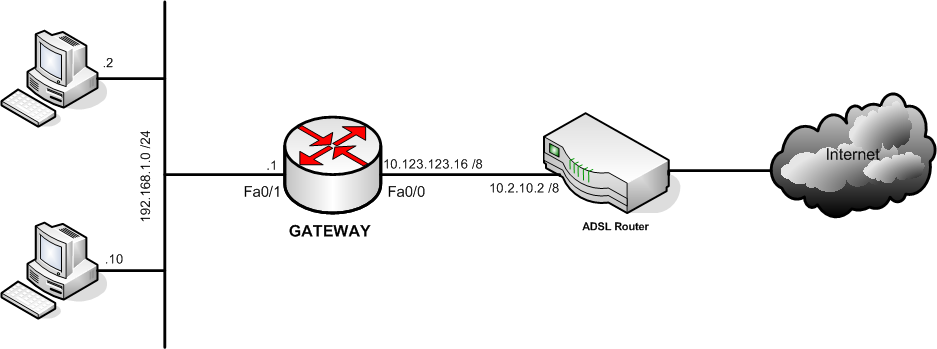
Trong bài lab này yêu cầu cấu hình Netflow trên router GATEWAY và kiểm tra kết quả Netflow cache qua CLI hoặc ứng dụng phân tích Netflow được cài đặt trên thiết bị giám sát.


III – Cấu hình chi tiết :
Bước 1 : Đặt tên và địa chỉ của các interface
Router(config) #hostname GATEWAY
GATEWAY(config) #interface FastEthernet0/0
GATEWAY(config-if) # ip address 10.123.123.16 255.0.0.0
GATEWAY(config-if) #no shutdown
GATEWAY(config) #interface FastEthernet0/1
GATEWAY(config-if) # ip address 192.168.1.1 255.255.255.0
GATEWAY(config-if) #no shutdown
Bước 2 : Cấu hình PAT và default route để mạng bên trong truy cập được Internet
GATEWAY(config-if) # access-list 1 permit 192.168.1.0 0.0.0.255
GATEWAY(config-if) # ip nat inside source list 1 interface FastEthernet0/0 overload
GATEWAY(config) #interface FastEthernet0/1
GATEWAY(config-if) #ip nat inside
GATEWAY(config) #interface FastEthernet0/0
GATEWAY(config-if) #ip nat outside 
GATEWAY(config) #ip route 0.0.0.0 0.0.0.0 10.2.10.2
Kiểm tra kết quả :
GATEWAY#show ip nat translations
Pro Inside global Inside local Outside local Outside global
tcp 10.123.123.16:2492 192.168.1.10:2492 65.55.122.231:2492 65.55.122.231:2492
tcp 10.123.123.16:2492 192.168.1.10:2492 65.55.122.233:2492 65.55.122.233:2492
tcp 10.123.123.16:2492 192.168.1.10:2492 65.55.122.234:2492 65.55.122.234:2492
tcp 10.123.123.16:2492 192.168.1.10:2492 65.55.122.235:443 65.55.122.235:443
tcp 10.123.123.16:2492 192.168.1.10:2492 65.55.122.235:2492 65.55.122.235:2492
Bước 3 : Cấu hình Netflow trên router
- Xác định thiết bị sẽ nhận flow cache (lưu ý phải bao gồm giá trị port):
GATEWAY(config) #ip flow-export destination 192.168.1.10 5000
- Xác định version của Netflow:
GATEWAY(config) # ip flow-export version 5
- Xác định cổng và hướng được theo dõi:
GATEWAY(config)#interface fa0/1
GATEWAY(config)#ip flow ingress
GATEWAY(config)#interface fa0/0
GATEWAY(config)#ip flow egress
- Bạn có thể cấu hình snmp-server để cho phép đa dạng thông tin được theo dõi :
GATEWAY(config)# snmp-server community cisco123 RO
Bước 4 : Cài đặt Netflow trên phần mềm giám sát
Trong phần này chúng ta sẽ dùng phần mềm Netflow Analyzer 8 để thực hiện giám sát
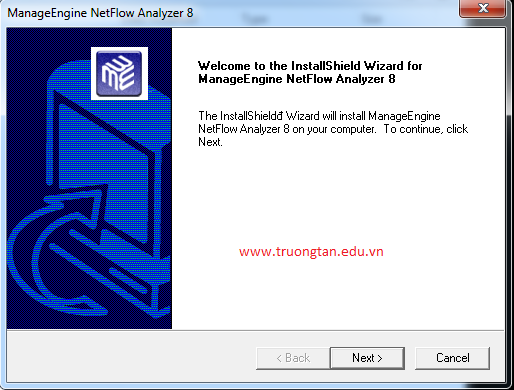
- Chuẩn bị cài đặt:


Chọn Next để tiếp tục
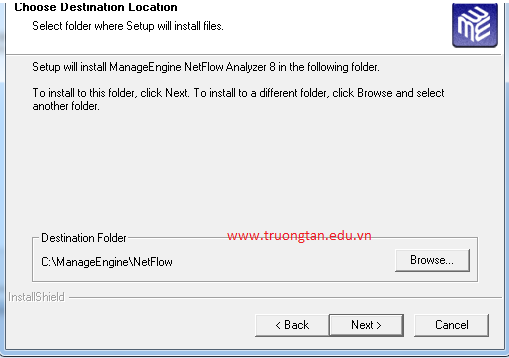
- Chọn thư mục cài đặt:


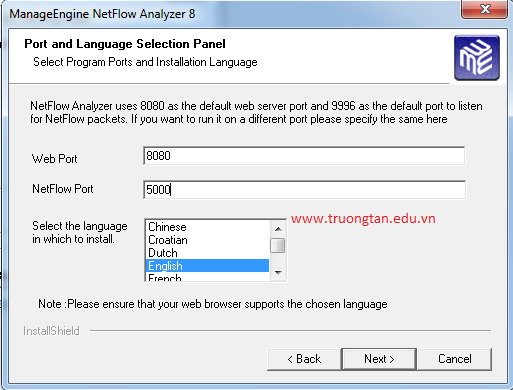
- Cấu hình web port 8080 và Netflow Port ở đây là 5000


Chọn Next -> Finish
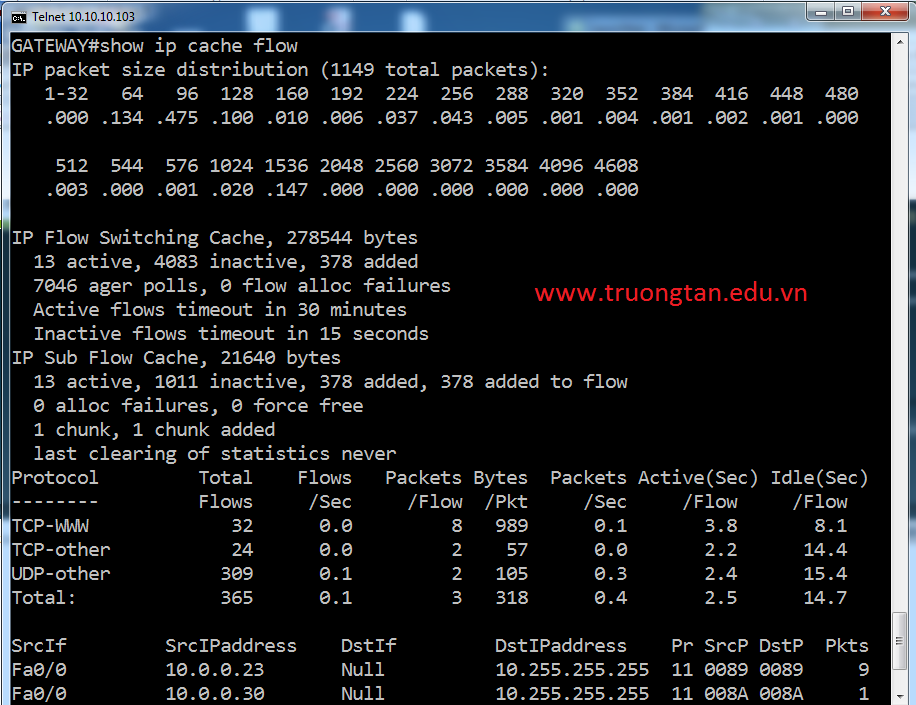
Kiểm tra:
Thực hiện truy cập dịch vụ Internet từ PC, ta có thể phân tích lưu lượng của ứng dụng theo kích cỡ gói, số lượng gói, địa chỉ IP, số port, cổng vào, cổng ra… trên router bằng câu lệnh show ip cache flow 


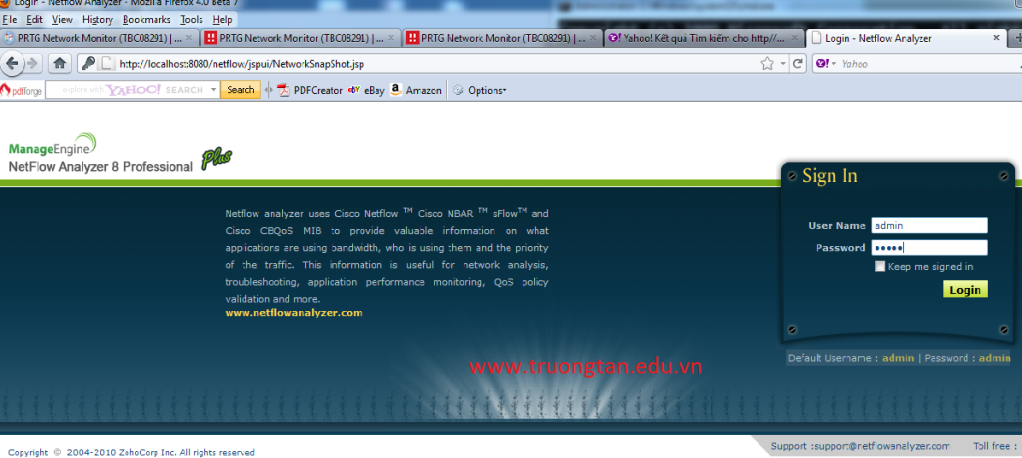
Bạn có thể quan sát trực quan bằng công cụ phân tích netflow dựa trên giao diện Web. Thực hiện đăng nhập vào ứng dụng với User Name :admin, Password : admin


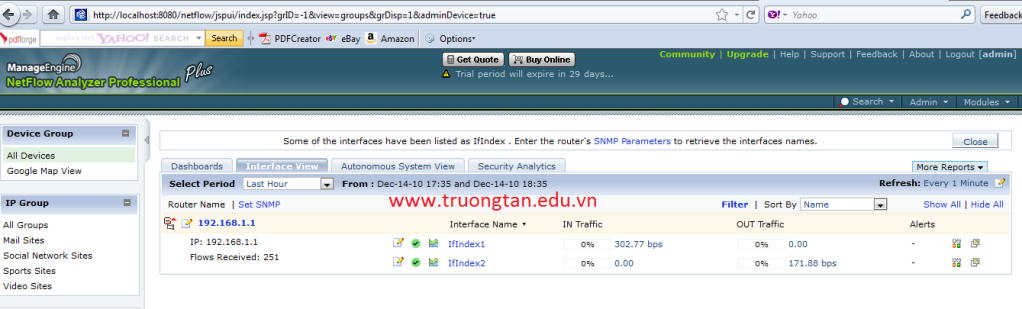
Sau khi đăng nhập thành công, bạn sẽ thấy các thiết bị được theo dõi:


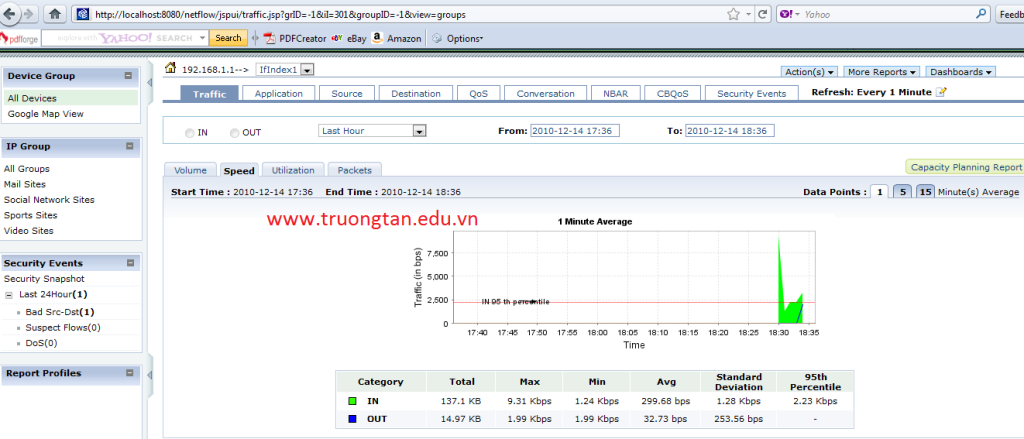
Biểu đồ biểu hiện lưu lượng theo thời gian và bảng thể hiện lưu lượng theo ứng dụng


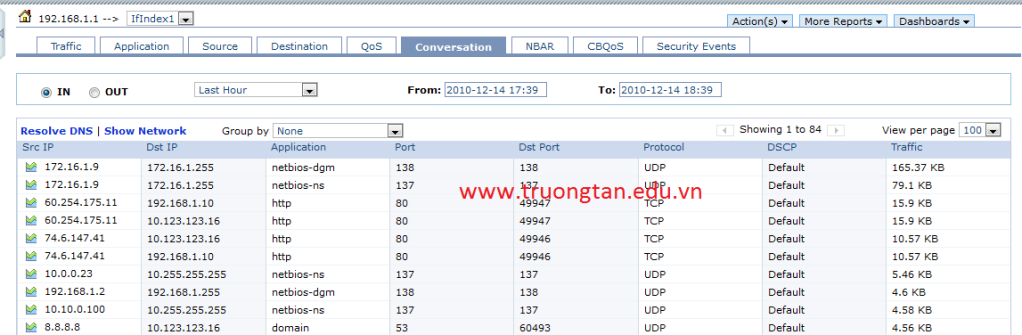
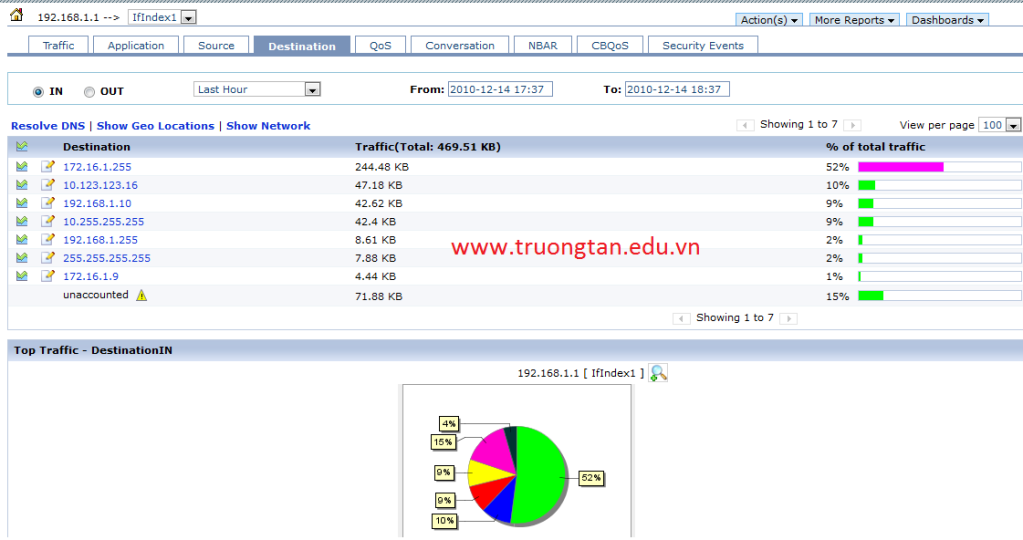
Phân loại lưu lượng theo địa chỉ IP nguồn và IP đích 

Friday, October 5, 2012

Unrar file with Ubuntu


you have got a rar file (or other file formats not naively supported by Ubuntu’s archive manager- such as arj, 7zip, etc), you need to install extra packages so that Archive Manager can handle these file formats. For example, if you would like to unrar a file in Ubuntu, you need to install the package unrar.  Open a terminal (command window) and simply issue this command:
sudo apt-get install unrar-free
for a non-free option, you can use:
sudo apt-get install unrar
You might be asked to give your password and then the package is downloaded and installed. After the package is installed, you can use the usual Archive Manager to unrar files.